


Conditional Formatting For A Row
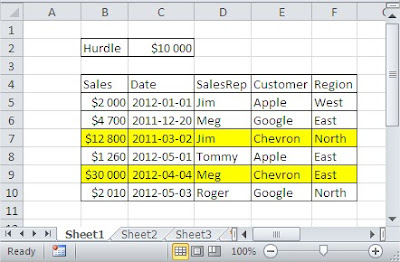
You have some sales report.

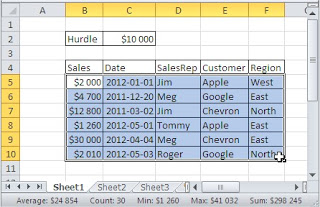
You can format rows, which sales is more then 10 000$. First select your data without headings.
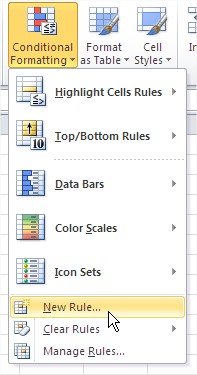
Next go to the ribbon and click Conditional Formatting and New Rule.
On the dialog box choose Use a formula to determine which cells to format option.

Write down =$B5>$C$2 formula.
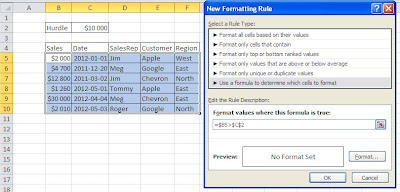
Next click Format and choose how your rows will be formatted. I clicked Fill and chose yellow background.

Click OK and see you data formatted? 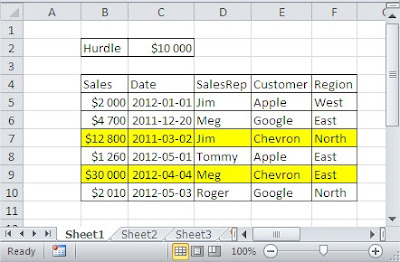
This is how Conditional Formatting for a row is working. Isn’t it easy?
Template
You can download the Template here – Download
Further reading:
Basic concepts
Getting started with Excel
Cell References


