


Create Pivot Table From Multiple Sheets
 Define a name for each table. Just type the name in and press Enter. See on the picture below to find the name’s place.

Do it for every table you got.
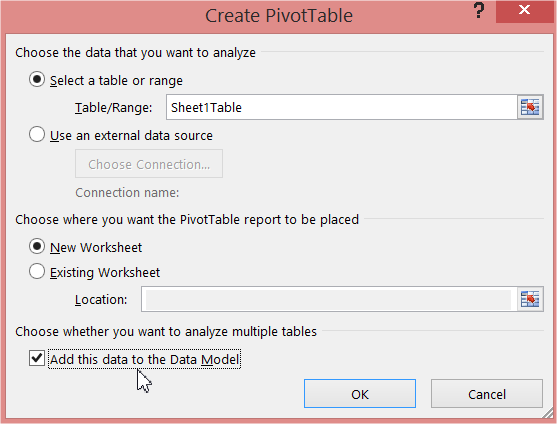
Next create a Pivot Table. Go to Insert -> Pivot Table. Dialog box pops out. Make sure to tick Add this data to data model box.
Pivot Table is ready. Thanks to the option ticked this is a special one. Pay attention that after clicking All you can find your created tables here.
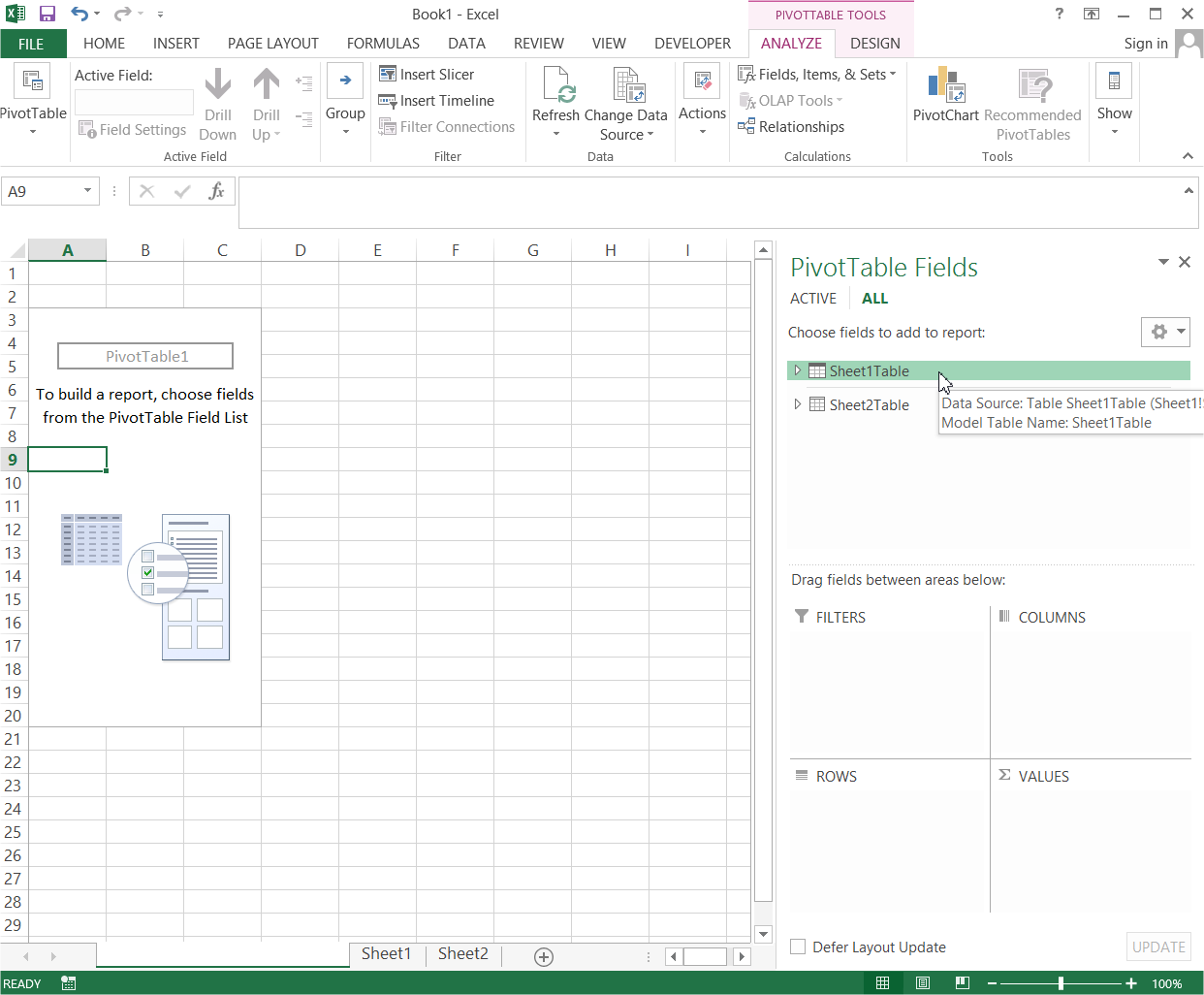
That’s not all! You need to create Relationships here. This is a column which connects your tables. If you know data bases this is such a primary key in database.
Go to Ribbon. In the Pivot table Tools tab which appeared click Analyze -> Relationships.
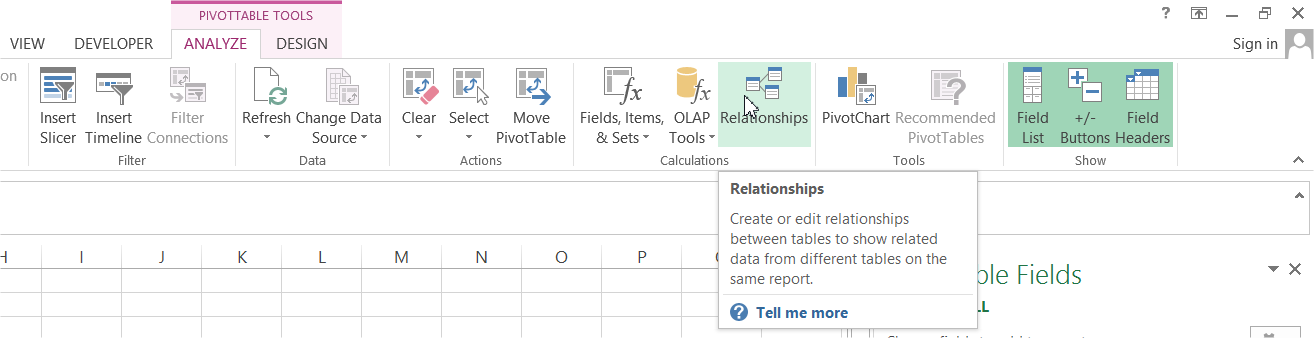
Now let’s create a New Relationship. For me it is id column which I have in my both tables. The most common are: order number, product number, id, name etc.

Your Pivot Table is ready. Feel free to create one for data from Multiple Sheets.
Template
Further reading:
Basic concepts
Getting started with Excel
Cell References


