


How To Use Double Filter
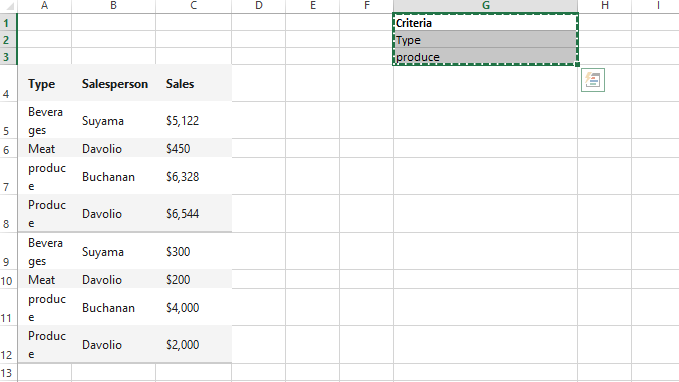
Let us try to create simple data in Excel for the filer criteria:
| Type | Salesperson | Sales |
| Beverages | Suyama | $5,122 |
| Meat | Davolio | $450 |
| produce | Buchanan | $6,328 |
| Produce | Davolio | $6,544 |
| Beverages | Suyama | $300 |
| Meat | Davolio | $200 |
| produce | Buchanan | $4,000 |
| Produce | Davolio | $2,000 |
Now in order to filter it by a single criteria we can use the advanced filter with the following criteria:
| Criteria |
| Type |
| produce |
Let us create the data and filter criteria:
Let us click the advanced:

And use the ranges as follows:

Clicking ok will give the following results:
| Type | Salesperson | Sales |
| produce | Buchanan | $6,328 |
| Produce | Davolio | $6,544 |
| Beverages | Suyama | $300 |
| Meat | Davolio | $200 |
| produce | Buchanan | $4,000 |
| Produce | Davolio | $2,000 |

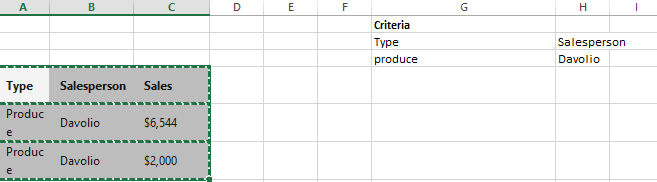
Now let us add more conditions for double filter like below:
| Criteria | |
| Type | Salesperson |
| produce | Davolio |
And select the following ranges for criteria in advanced:

The results are as follows:
| Type | Salesperson | Sales |
| Produce | Davolio | $6,544 |
| Produce | Davolio | $2,000 |
Please check:
Adding one more condition:
| Type | Salesperson | Sales |
| produce | Davolio | >200 |
The results are as follows:
| Type | Salesperson | Sales |
| Produce | Davolio | $6,544 |
| Produce | Davolio | $2,000 |
Template
You can download the Template here – Download
Further reading:
Basic concepts
Getting started with Excel
Cell References


